
Documentation
Everything you need to know about Tabify.
Tabify is a guitar arrangement tool available as a web editor. It uses a custom .tbfy format (JSON-based) to store tablature with techniques, finger annotations, and metadata. The site is also a PWA — install it once and it runs offline.
What's New
- Playback & metronome — press
Spaceto play; a red playhead sweeps measures with audible clicks. - Tap tempo — tap the
Tapbutton or pressTin rhythm to set BPM. - Measure repeats — press
%to mark the current measure as a repeat (renders as%×N). - Selection model —
Shift+ArroworShift+Clickselects a rectangle; copy / paste / transpose / delete across cells. - Drop‑D auto‑suggest — the editor detects power-chord shapes and offers to switch tuning.
- Duplicate measure —
Ctrl+Dor the duplicate button. - Dirty indicator — title gets a
•prefix and a red dot appears when there are unsaved changes. - Cheat sheet — press
?to pop up a quick reference of every shortcut. - Print —
Ctrl+Popens a print-ready preview and triggers the print dialog. - Installable & offline — install Tabify from any modern browser and use it without internet.
Quick Start
Open the editor in your browser. No installation needed. Use arrow keys to navigate the grid and type numbers for fret values. Press ? at any time to see the full keyboard cheat sheet.
Install & Offline
Tabify is a Progressive Web App. After your first visit, a service worker caches the entire app so it loads offline.
Install on desktop
- Chrome, Edge, Brave, Opera, Arc, Vivaldi — click the install icon in the address bar, or open the menu and choose Install Tabify.
- Safari (macOS 17+) — File → Add to Dock.
- Firefox desktop — native install is unavailable; either bookmark it (offline still works in the tab) or use the PWAsForFirefox add-on for a standalone window.
Install on mobile
- iOS Safari — Share menu → Add to Home Screen.
- Android Chrome / Firefox — menu → Install or Add to Home screen.
Once installed, Tabify runs as a standalone app with its own icon and works without internet. Your .tbfy files save to your device just like in the browser.
Built-in Tuner
Whenever you launch the editor, Tabify first asks whether you'd like to tune your instrument. Choose No to go straight to the editor, or Yes to open the built-in chromatic tuner.
- Allow microphone — grant mic access and play a single string; the tuner detects the pitch in real time.
- Readout — shows the nearest note and octave, the exact frequency in Hz, and how many cents you are sharp or flat.
- Needle — the meter swings left (flat) or right (sharp) and the display turns green when you are within ±5 cents (in tune).
- Continue to editor — moves on to the editor whenever you're ready.
The tuner runs entirely on your device — audio from the microphone is analysed in the browser and never leaves your machine. Microphone access requires a secure context (https or localhost).
Already in the editor? Click the Tuner button in the top bar to open the tuner in a new tab — your current arrangement stays open and untouched.
Navigation
The editor displays tablature as a grid of cells across 6 strings. Move around with:
- Arrow keys — move one cell in any direction
- Tab — jump forward one beat (skips subdivisions)
- Click any cell to move the cursor there
Entering Notes
With the cursor on a cell, type a fret number:
- 0-9 — single digit fret numbers are entered instantly
- Multi-digit — type quickly for frets 10-24 (e.g. type
1then2for fret 12) - x — muted string
- Delete / Backspace — clear the current cell
Techniques
Apply a technique to any note using the toolbar buttons or keyboard shortcuts:
| Key | Technique |
|---|---|
h | Hammer-on |
p | Pull-off |
/ | Slide up |
\ | Slide down |
b | Bend |
~ | Vibrato |
<> | Harmonic (toolbar only) |
Click a technique button once to activate it — the next note entered will carry that technique. Click again to deactivate.
Techniques are displayed differently depending on type:
- Slide, hammer-on, pull-off — appear between notes (on the left edge of the cell)
- Bend, vibrato, muted — appear above the note
- Harmonics — wrap the fret number inline, e.g.
<12>,<7>
Harmonics
Tabify supports two types of harmonics:
- Natural harmonics — played on an open string at harmonic nodes (frets 5, 7, 12, etc.). Notated as
<12>,<7>,<5>. - Artificial harmonics — a fret is pressed and a harmonic is played relative to that position. Notated as
2<7>(fret 2 pressed, harmonic at fret 7).
To enter a natural harmonic:
- Click the
<>button in the toolbar to activate harmonic mode - Type the harmonic fret number (e.g.
12) — the cell shows<12>
To enter an artificial harmonic:
- Click the
<>button to activate harmonic mode - Type the fretted note (e.g.
3) — the cell shows<3> - Type the harmonic node on the same cell (e.g.
4) — the cell updates to3<4>
Finger Notation
Tabify supports both left-hand and right-hand finger annotations, displayed as superscripts around each note:
Left Hand (L.H.) — appears on the left of the note
| Button | Finger |
|---|---|
1 | Index |
2 | Middle |
3 | Ring |
4 | Pinky |
Right Hand (R.H.) — appears on the right of the note
| Button | Finger |
|---|---|
P | Pulgar (Thumb) |
I | Index |
M | Middle |
A | Anular (Ring) |
C | Chiquito (Pinky) |
Left-hand annotations appear in green as superscripts to the left of the note. Right-hand annotations appear in blue as superscripts to the right.
Sections & Measures
Organize your tab into named sections (Intro, Verse, Chorus, etc.):
- + Section — add a new section with a preset or custom name
- + Measure — add a measure after the current one
- - Measure — delete the current measure
- Duplicate — copy the current measure right after itself (
Ctrl+D) - Use the arrow buttons in section headers to reorder sections
- Copy and paste measures with
Ctrl+C/Ctrl+V(cell selections paste at the cursor)
Selection & Editing
Tabify supports rectangular multi-cell selection within a single section, so you can operate on whole phrases at once.
- Shift + Arrow keys — extend the selection from the cursor in any direction (spans measures, columns and strings)
- Shift + Click — extend the selection to the clicked cell
- Escape — clear the selection
- Delete / Backspace — clear every selected cell
- Ctrl+C / Ctrl+V — copy and paste the selection; paste preserves the relative shape and lands at the cursor
- Transpose — when transposing, the operation applies to selected cells only (otherwise to the current measure)
The selection is highlighted in red. A cursor crosshair (highlighted row and column) makes it easy to see exactly where you are at all times.
Playback & Tempo
The editor includes a built-in metronome with a visual playhead so you can hear and see your arrangement at the set BPM.
- Play / Stop — click
▶/■in the toolbar, or pressSpace - Playhead — a red vertical bar sweeps through the active measure; the click is accented on each downbeat
- Live BPM — changing the BPM during playback re-syncs the playhead instantly
- Looping — playback loops within the current section
Tap Tempo
You can dial in the BPM by feel instead of typing a number:
- Click Tap in the toolbar, or press
T, in rhythm with the desired tempo - Tabify averages your last few taps (within a 2-second window) and sets the BPM
- The button flashes red on each tap so you have a visual cue
Measure Repeats
For songs with repeated bars, mark a measure as a repeat of the previous one instead of duplicating the contents.
- Press
%on the current measure, or click the Repeat button — the measure is replaced with a%glyph and a×Nmultiplier - Click the button again (or use the repeat modal) to set how many times to repeat
- Press
%on a repeat measure again to turn it back into a normal measure - Repeats are honored by playback and by the printable export
Save & Open
Tabify uses file-based saving with the .tbfy format:
- Save (or
Ctrl+S) — downloads a.tbfyfile to your device. The filename is based on the song title. - Open — opens a file picker to load any
.tbfyfile into the editor. - Autosave — your work is mirrored to local storage on every change, so an accidental reload restores the last state.
Whenever there are unsaved changes, a red dot appears next to the title in the topbar and the browser tab title is prefixed with •. The dot clears the moment you save.
Files are saved to your device's downloads folder. There are no storage limits, and files can be shared, backed up, or opened on any device with a browser.
Fretboard Reference
Click Fretboard in the top bar to open an interactive fretboard panel. The fretboard dynamically adapts to whatever tuning is set in the editor, including custom tunings.
- Select a scale and root note to see scale degrees across the neck
- Supports: major, minor, pentatonic (major/minor), blues, dorian, mixolydian, harmonic minor, and phrygian
- Enable Harmonics to see natural harmonic nodes at frets 3, 4, 5, 7, 12, 19, and 24
- Adjust the number of frets displayed (5-24)
Print & Export
Tabify can render your arrangement as a clean, print-ready document:
- Print (toolbar button or
Ctrl+P) — opens a print-preview window and triggers the browser's print dialog automatically. Save as PDF from the dialog if you want a digital copy. - Export — opens the same print-preview without auto-launching the dialog, so you can inspect or share the HTML.
The output renders a visual grid matching the editor layout, with string lines, measure bars, fret numbers, techniques, finger notation, and measure repeats.
Screenshots
 Splash screen — strum the guitar to enter.
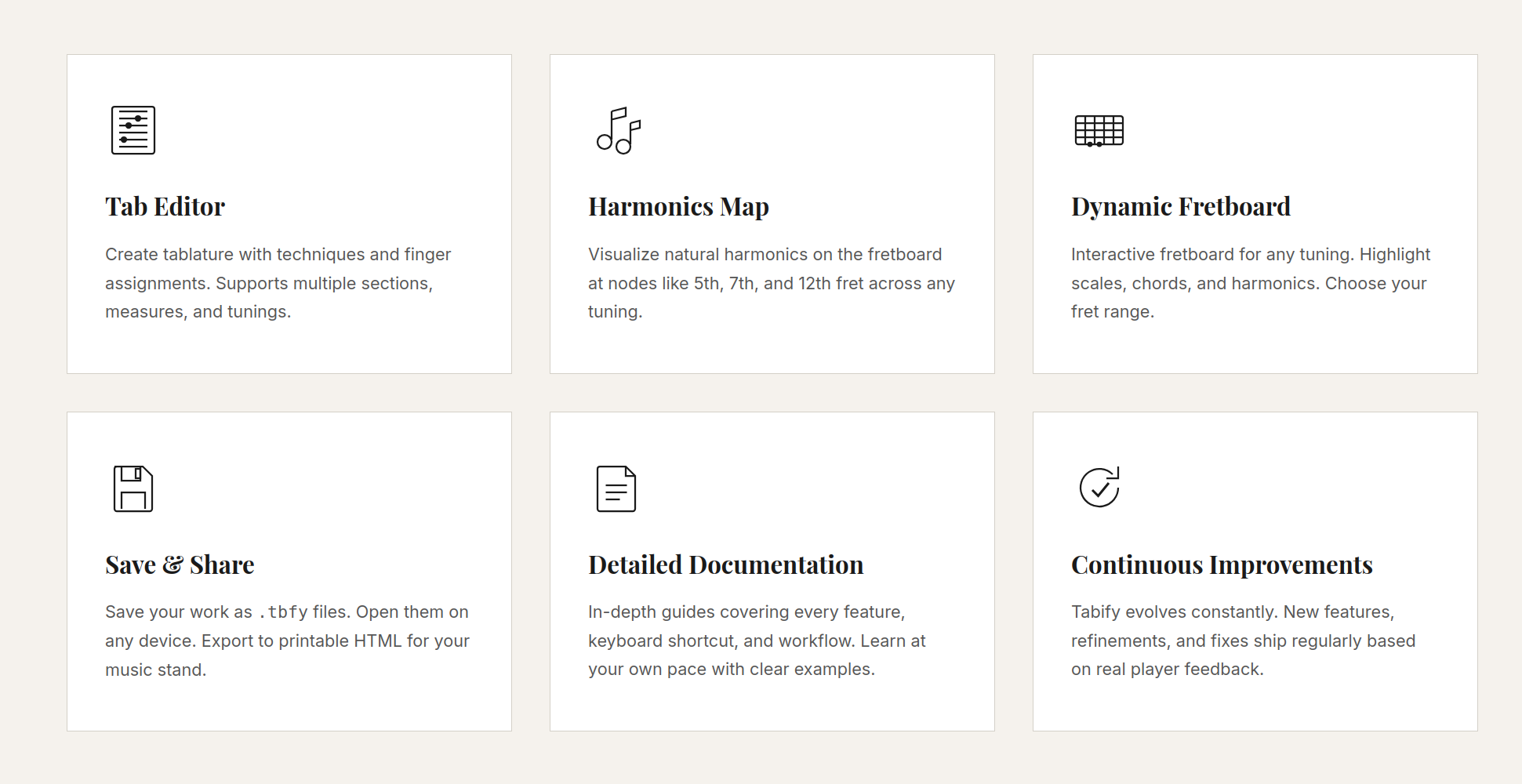 Landing page — feature overview.
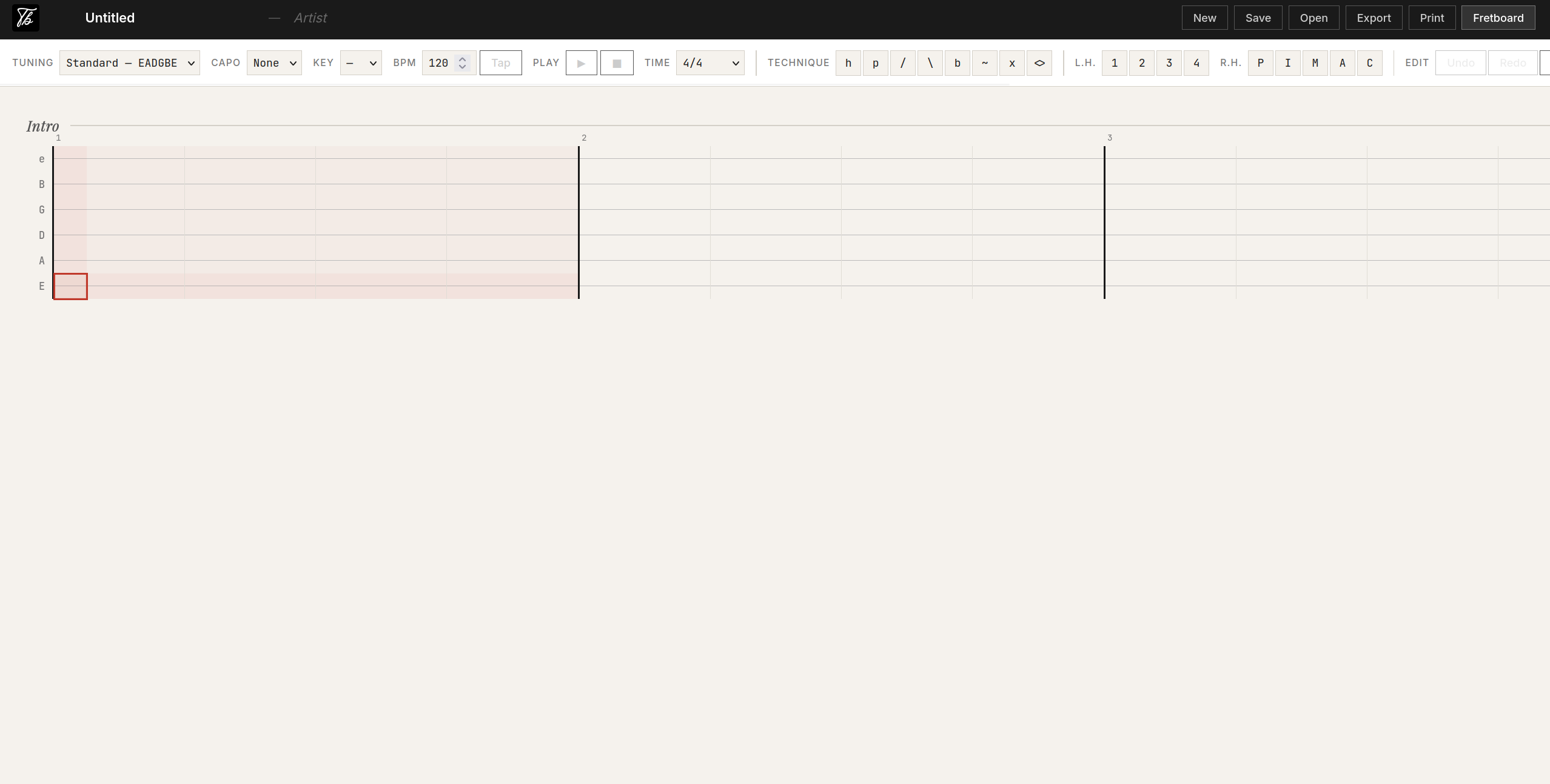 Editor — toolbar, cursor crosshair and an empty intro section.
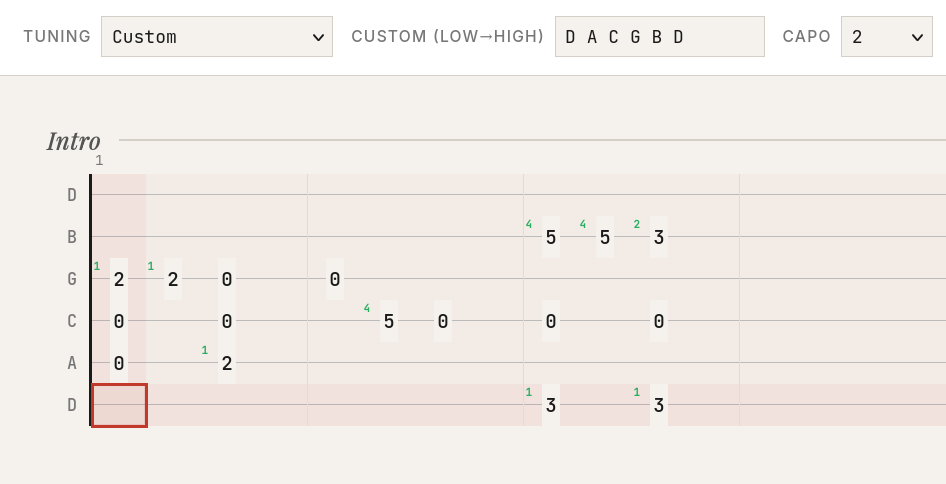 A finished arrangement — custom tuning
 DACGBD, capo 2, with left-hand finger annotations.
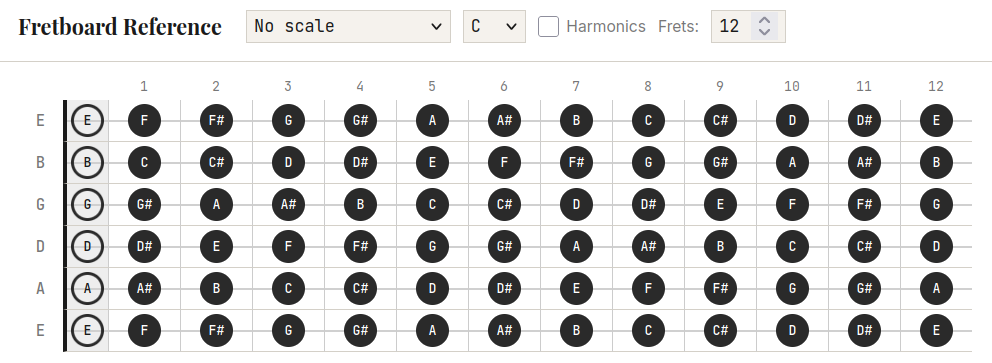 Fretboard reference — interactive panel for any tuning, scale and harmonic overlay.
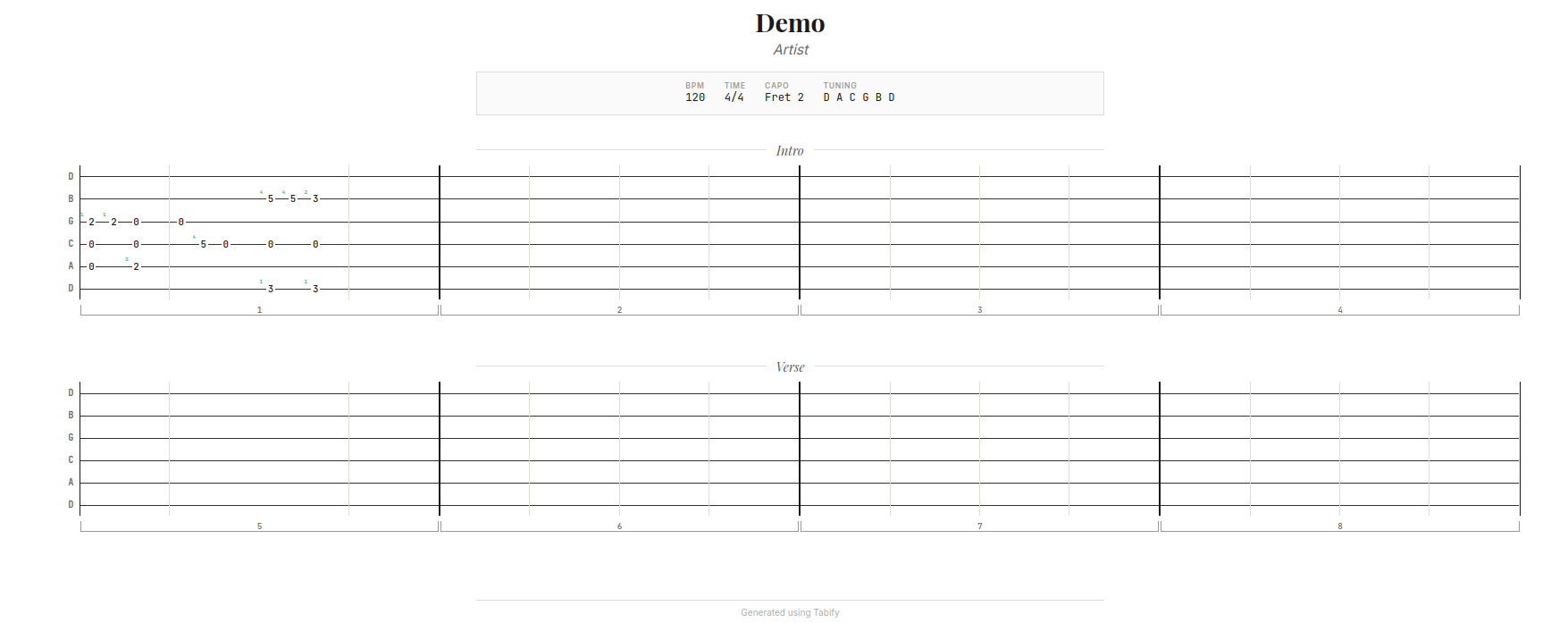 Print / export — clean, paper-ready layout.
.tbfy File Format
The .tbfy format is JSON with the following structure:
{
  "title": "Song Name",
  "artist": "Artist",
  "tuning": "standard",
  "capo": 0,
  "key": "Am",
  "bpm": 120,
  "timeSig": "4/4",
  "beatsPerMeasure": 4,
  "subdivisions": 4,
  "sections": [
    {
      "name": "Intro",
      "measures": [
        {
          "repeat": 0,
          "columns": [
            {
              "notes": [null, null, 0, 2, 2, 0],
              "techniques": [null, null, null, null, null, null],
              "fingers": [null, null, null, null, null, null],
              "lhFingers": [null, null, null, null, null, null]
            }
          ]
        }
      ]
    }
  ]
}
Each column represents one subdivision (default: 16th note). The notes array maps to strings low E through high e (index 0-5). Values are fret numbers, "x" for muted, or null for empty. repeat is 0 for a normal measure or N ≥ 1 to mark it as a repeat of the previous measure played N times.
Keyboard Shortcuts
Press ? in the editor to open the in-app cheat sheet at any time.
Navigation
| Key | Action |
|---|---|
Arrow keys | Move cursor |
Tab | Jump one beat forward |
Shift + Arrow | Extend selection |
Shift + Click | Extend selection to cell |
Escape | Clear selection / close modal |
Notes
| Key | Action |
|---|---|
0 – 9 | Enter fret number |
x | Muted string |
Delete / Backspace | Clear cell (or selection) |
h | Hammer-on |
p | Pull-off |
/ | Slide up |
\ | Slide down |
b | Bend |
~ | Vibrato |
Editing
| Key | Action |
|---|---|
Ctrl + Z | Undo |
Ctrl + Shift + Z / Ctrl + Y | Redo |
Ctrl + C | Copy measure or selection |
Ctrl + V | Paste |
Ctrl + D | Duplicate current measure |
% | Toggle measure repeat |
Playback & Tempo
| Key | Action |
|---|---|
Space | Play / stop |
T | Tap tempo |
File & Help
| Key | Action |
|---|---|
Ctrl + S | Save as .tbfy |
Ctrl + P | |
? | Toggle cheat sheet |
Supported Tunings
| Name | Notes | Strings |
|---|---|---|
| Standard | E A D G B E | 6 |
| Drop D | D A D G B E | 6 |
| DADGAD | D A D G A D | 6 |
| Open G | D G D G B D | 6 |
| Open D | D A D F# A D | 6 |
| Ukulele (re‑entrant) | G C E A | 4 |
| Ukulele (low G) | G C E A | 4 |
| Ukulele (baritone) | D G B E | 4 |
| Custom | Enter any space‑separated note names in the editor | matches how many notes you type |
Switching between a 6‑string (guitar) and 4‑string (ukulele) tuning adds or removes the extra string rows across the whole tab. The editor grid, fretboard reference, scale and harmonic overlays, playback, save/open and printable export all adapt to the string count automatically.